
Law Icons That Make Legal Slides Clearer and Easier to Scan
Ten courtroom, workplace-law and contract icons, sized and coloured consistently, help legal and HR presentations read at a glance.
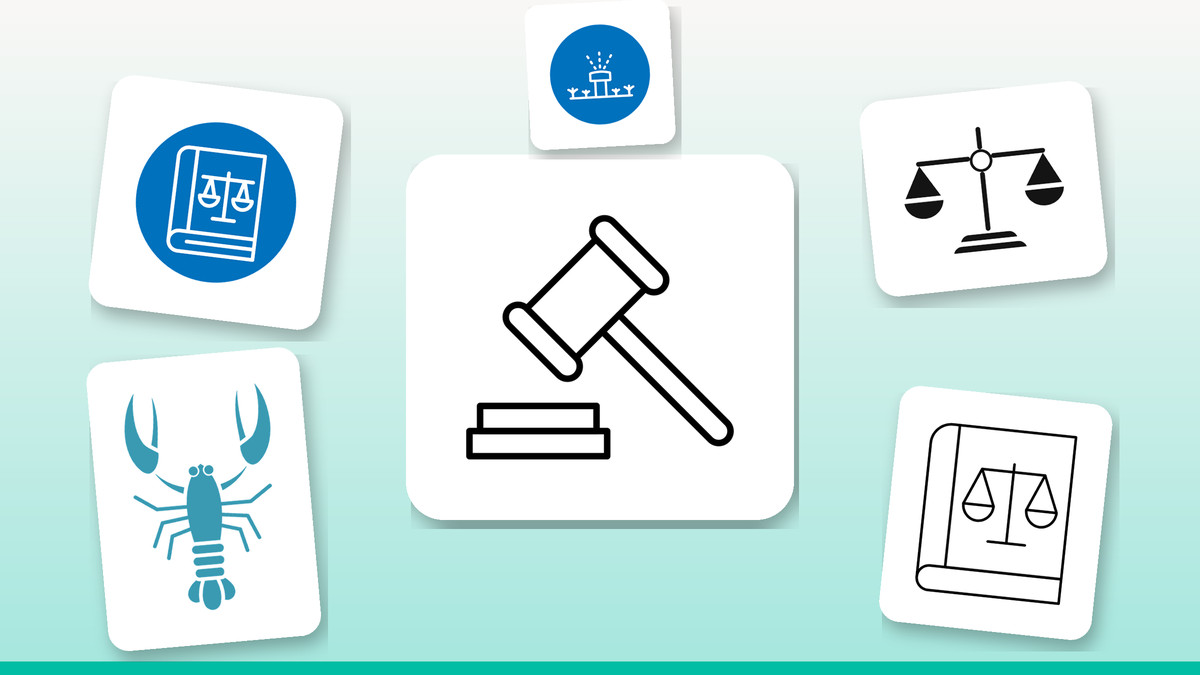
Legal and HR decks are dense by nature — clauses, precedents, compliance steps. Readers skim, and dense text slows them down further, especially in webinars or hybrid meetings where attention is split. A well-placed icon next to a heading tells the audience what a slide is about before they've read a word, which matters more than ever as more presentations get watched on small screens rather than in a room.
Our take: pick one icon style and stick with it for the whole deck — mixing outline and filled icons on the same slide reads as sloppy, not stylish. Match stroke weight to your body text size, keep colour to one or two accents tied to your brand, and size icons so they're legible as a thumbnail, not just full screen. Consistency does more for comprehension than any single clever icon.
The icons

A clear opener for any courtroom or litigation topic
This gavel-and-judge pairing reads instantly as 'litigation' or 'ruling,' which makes it a strong choice for a title slide or agenda header on any courtroom-focused deck. Use it at around 48-64px so the hammer detail stays crisp, and pick one colour variant to match your accent colour rather than leaving it in mixed tones.
Download free →
One icon that says 'employment law' without a caption
Combining a book with scales, this design is built for HR and employment-law section dividers where you need the topic to register before anyone reads the slide title. Use the colour-filled version on dividers so it stands apart from the outline icons used for regular content bullets, keeping the two visually distinct roles obvious.
Download free →
The simplest justice symbol for inline bullets
A plain balanced scale is the most flexible icon here — it fits fairness, compliance, or 'weighing options' slides without pulling in extra meaning. Keep it small, around 20-24px, in outline style, and place it directly before bullet text so it sits at the same line height as your copy instead of floating above it.
Download free →
A pointed detail for maritime and fishing-rights law
Admiralty, fishing-rights and food-industry regulation slides need a visual anchor too, and this raised-claw lobster fills that specific gap without forcing a generic scale icon into a topic it doesn't fit. Use it once, at a larger size, on the slide that introduces the maritime or seafood-regulation case study — repeating it elsewhere will feel random.
Download free →
A general-purpose stand-in for statutes and codes
When a slide references 'the code,' 'the statute,' or 'regulations' without needing a courtroom scene, this plain book icon is the neutral choice. It works equally well in outline for a compliance checklist or filled for a title slide, so pick whichever matches the rest of your deck's icon set and keep it that way throughout.
Download free →
A concrete image for water-rights and land-use law
Agricultural and environmental law slides often talk about water rights, irrigation permits or land-use disputes in the abstract; this sprinkler-and-seedlings icon gives that content something concrete to look at. Pair it with the plain scale icon in the same accent colour on a two-column slide to contrast the subject matter against the legal framework.
Download free →
Show a ruling has tipped one way
A scale with a tilted beam is the icon to reach for when the slide content is about an outcome — a favourable verdict, a risk assessment, or a discussion of bias — rather than balance itself. Use the colour-filled version so the tilt reads clearly even at a distance, and reserve it for slides where a decision has actually been made.
Download free →
A ready-made avatar for team and bio slides
This attorney figure works well as a stand-in avatar on 'who's who' or org-chart slides when headshots aren't available or appropriate. Set it inside a circle at a fixed size, such as 64px, matching whatever size you use for actual headshot photos elsewhere in the deck so the row of team members stays visually even.
Download free →
A close-up cue for 'decision' or 'verdict' slides
The gavel resting on its sound block is a tighter, more literal image than a swinging gavel, which makes it a good fit for a slide specifically about a ruling, decision, or procedural step. Use it as a small 24px bullet icon directly before a 'Decision' or 'Outcome' heading rather than as a full-slide graphic.
Download free →
A single icon that frames an entire workplace-rights deck
Briefcase, gavel and labour cues combined into one design make this the icon to open an employment-law or workplace-rights presentation with — it signals the whole topic in one glance. Scale it up to 80-96px on the title slide, use one accent colour, and switch to simpler single-subject icons like the plain scale for the body slides that follow.
Download free →Five rules for icon-heavy legal decks
- Pick one icon style — outline, filled, colour-outline or colour-filled — and use it for every icon in the deck.
- Size inline bullet icons at 20-28px to match text line height; scale dividers and title slides up to 60-96px.
- Limit your palette to one or two accent colours plus a neutral outline so icons don't compete with text.
- Group icons by topic using colour: all employment-law icons in one accent, all courtroom icons in another.
- Add short alt text to every icon you place, since screen-reader users get no information from an image alone.
Browse the full library at infyicon.com.
FAQ
Should I use outline or filled icons for a professional legal presentation?
Outline icons read as formal and stay legible on light slide backgrounds, so they're the safer default for body content and bullet lists. Colour-filled icons carry more visual weight, which makes them better suited to title slides and section dividers. Use both in the same deck deliberately — outline for content, filled for structure — rather than mixing them at random.
How do I keep icon colours consistent with my firm's or company's brand?
Use the colour-outline or colour-filled variants and recolour them to one or two brand accent colours instead of leaving the defaults. Apply the same accent consistently to icons representing the same category, such as every employment-law icon in one colour, so the grouping reads visually without extra labelling.
What icon size actually works in PowerPoint or Google Slides?
For bullets sitting next to body text, 20-28px keeps the icon aligned with the line height of the copy. For section headers, title slides or dividers, scale up to 60-96px so the icon still reads clearly on a laptop screen in a webinar or from the back of a conference room.
None of this requires redesigning a deck from scratch — just swap one dense bullet slide, such as an employment-law agenda, for icon-and-text pairs using two or three of these designs in a single colour. Try it on your next presentation and see how much faster the audience follows the structure.